Recognize the specific failure pattern before rebuilding anything
This is not the same problem as a custom property never appearing in the node. In the reported typeVersion 2.2 case, the property list could be opened and loaded, the credential pointed to the correct HubSpot portal, no fields had been renamed or deleted, and the stored workflow still executed correctly. The visible editor state was wrong while the runtime state remained usable.
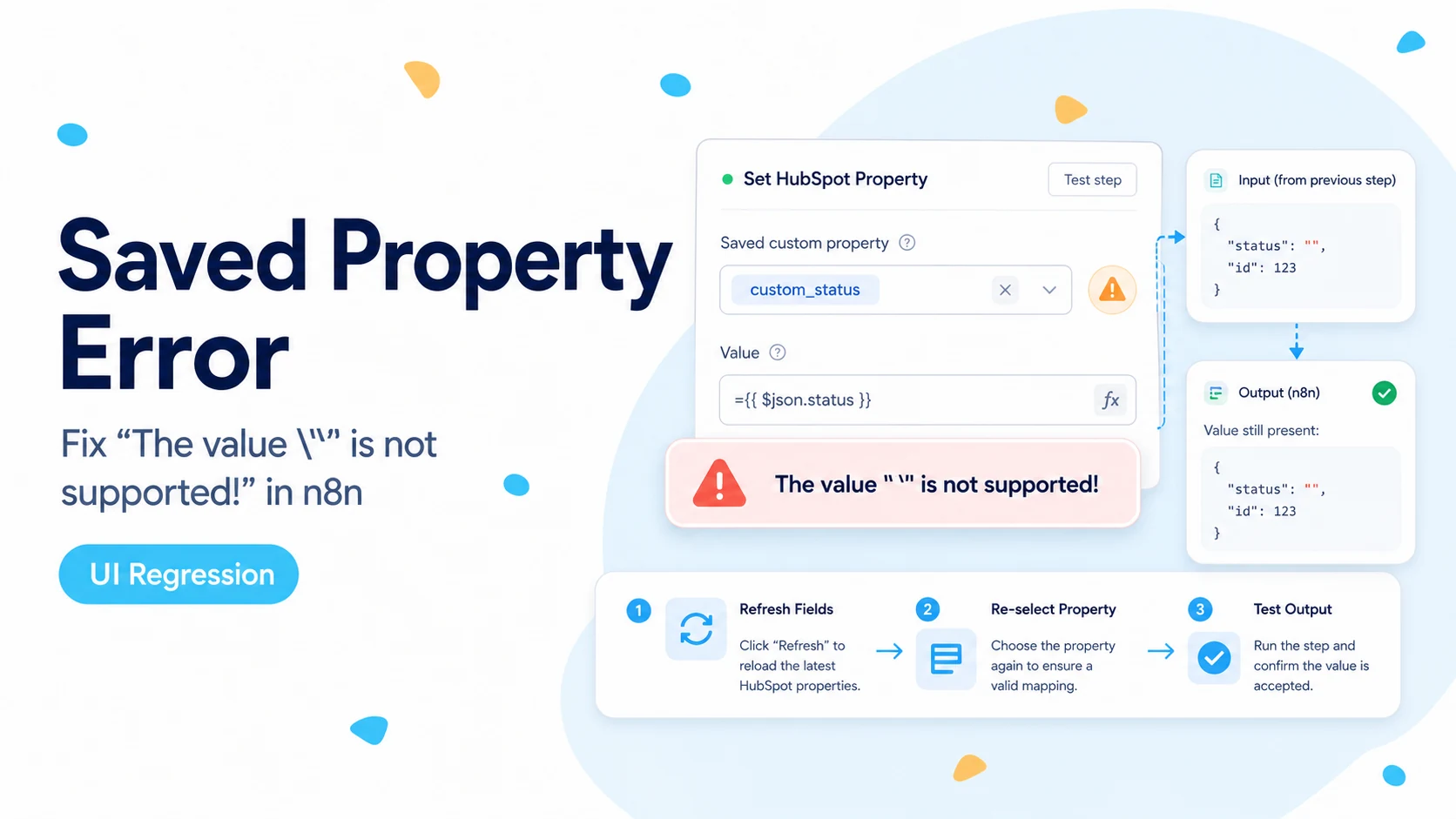
The n8n Community report from May 2026 describes every Custom Properties row reopening with an empty dropdown and the message “The value \"\" is not supported!” The author also confirmed the workflow JSON still contained the property bindings. That combination is the key diagnostic pattern.
If your node does not execute, or HubSpot returns a 400/403 error, do not call it the same issue yet. A runtime failure can be a real property-name, permission, or value-format problem. The safe diagnosis starts by separating editor display from execution behavior.
A red-looking field in the editor is not always a broken production mapping. Check saved JSON and one controlled execution before touching dozens of rows.
Export the workflow before clicking or re-selecting fields
The biggest risk in this scenario is turning a visual bug into a real configuration change. If the node opens with blank-looking dropdowns, it is easy to click through each row and accidentally save empty or different values over the working bindings.
Export the workflow JSON first. Search the HubSpot node parameters for the custom property internal names you expect. You are not trying to understand every line of the workflow; you only need to prove whether the mapping value is still present in the serialized configuration.
Keep the export outside the workflow while you investigate. If an editor save rewrites the affected rows, you now have a known-good reference and can restore the internal names without relying on memory.
- Export before editing the affected HubSpot node.
- Search for known internal names such as lead_score or customer_tier.
- Record the node typeVersion.
- Do not bulk re-select rows until you know whether the serialized values are intact.
Run one controlled test to separate UI state from runtime state
Choose a test contact and change one custom property to a value that is easy to recognize. Execute the workflow without editing the suspicious row first. If HubSpot receives the correct value, the runtime mapping still knows the property even though the editor dropdown looks empty.
If the write succeeds, capture that evidence before making any changes. It tells you the credential, HubSpot property, and saved node parameter are all functional for that test. Your remaining problem is how the editor represents the saved selection.
If the write fails, expand the full error. A HubSpot validation error about an unknown property or invalid value means you are no longer dealing with a display-only symptom. Follow the API response instead of the community workaround.
When you must edit the mapping, use the internal property name deliberately
The community workaround for typeVersion 2.2 is to bypass the dropdown matching logic when editing. Switch the property field to Expression mode and enter the HubSpot internal property name as a literal string. The important word is internal: use the API property name, not the human label shown in HubSpot settings.
Before doing that, verify the property with HubSpot’s Properties API. The current endpoint returns the label, name, type, fieldType, and option metadata for every Contact, Company, Deal, or other supported object. That protects you from hard-coding a typo into the workflow.
For a literal field name, prefer an expression that clearly returns a string rather than an unquoted identifier. A bare identifier inside expression syntax can be interpreted as a variable and resolve to empty.
Example concept for a literal internal property name:

{{ 'lead_score' }}

Not:
{{ lead_score }}

The second form asks n8n to evaluate a variable named lead_score.
Use HubSpot’s Properties API as the source of truth
HubSpot’s current Properties API can return all existing properties for an object. For Contacts, query the contacts property endpoint with the same portal credential. If the internal name appears there, the field exists independently of what the n8n dropdown displays.
This check also catches a subtle case: the visible label is unchanged but the workflow was built against a different portal where the internal property name differs. Two HubSpot accounts can each have a field labeled Lead Score while the underlying names are not identical.
If the API shows the property as archived or your credential cannot retrieve the object’s properties, resolve that first. The expression workaround should not be used to bypass a real access problem.
GET https://api.hubapi.com/crm/properties/2026-03/contacts

Find the property and copy its exact:
"name": "lead_score"
Edit one row at a time and compare the exported JSON
Do not repair every affected row in one pass. Fix a single mapping, save the workflow, export again, and compare the HubSpot node parameters to your backup. Confirm that only the intended property reference changed.
Then execute the test workflow and verify the value in HubSpot. Once that row is proven, move to the next one. This is slower than mass re-selecting fields but much faster than discovering later that ten production mappings were silently rewritten.
If the node contains dozens of custom fields, consider temporarily duplicating the workflow and testing the repair there. A connector UI regression is exactly the kind of situation where cautious, reversible changes pay for themselves.
When this is not the same typeVersion 2.2 issue
Do not use the display-bug diagnosis when the property never existed in the workflow JSON, when the credential points to a different HubSpot account, or when the HubSpot API says the property is unknown. Those are configuration problems.
Likewise, a successful property picker with a failed write is usually a value-contract issue. Numeric, date, datetime, and enumeration properties each have formatting rules. Fix the rejected value rather than editing the property selector.
If the node was upgraded across versions and the runtime now fails as well as the editor, preserve the old export and compare the node parameters before and after migration. That is a broader node-version regression and deserves a separate investigation.
- Display wrong + JSON intact + runtime succeeds: likely editor rehydration symptom.
- Property absent from JSON: mapping is actually missing.
- Property absent from HubSpot API: wrong field/account/object or archived property.
- Runtime 400 on value: investigate the property type and payload.
- Runtime 401/403: investigate authentication or scopes.
Add a small regression check for important workflows
For revenue or lead-routing workflows, keep a canary contact with known custom-property values. After an n8n upgrade, run one controlled execution and confirm the canary field changes as expected. This catches connector regressions before a customer-facing record exposes them.
Store the n8n version and HubSpot node typeVersion with your deployment notes. A screenshot of the editor is less useful than knowing exactly which serialized node version produced the behavior.
If you manage several workflows with the same custom fields, resist the urge to “fix” them all because one editor tab looks wrong. Test the smallest possible surface first, then propagate only a verified workaround.
Where these facts come from
The exact UI symptom is documented in an n8n Community report for HubSpot node typeVersion 2.2. The property-verification method comes from HubSpot’s current Properties API documentation. Because the community thread is not an official n8n release note, this guide describes the behavior as a reported regression pattern rather than claiming an officially confirmed root cause.
Frequently asked questions
Does "The value is not supported!" mean my HubSpot property was deleted?
Not necessarily. Treat it first as an editor rehydration problem in the node UI. Export the workflow and check whether the saved JSON still contains the internal property name before you assume the field is gone.
Should I re-map every custom property row that shows the warning?
No. If runtime writes still succeed, leave untouched mappings alone. Only rebuild a row when you actually need to edit it, and do that with the internal property name in Expression mode after confirming the property exists in HubSpot.
How do I edit one affected mapping safely?
Back up the workflow first, run a runtime test to confirm current behavior, then rebuild only that single mapping using the internal property name. Verify the property with the Properties API rather than trusting the dropdown label.