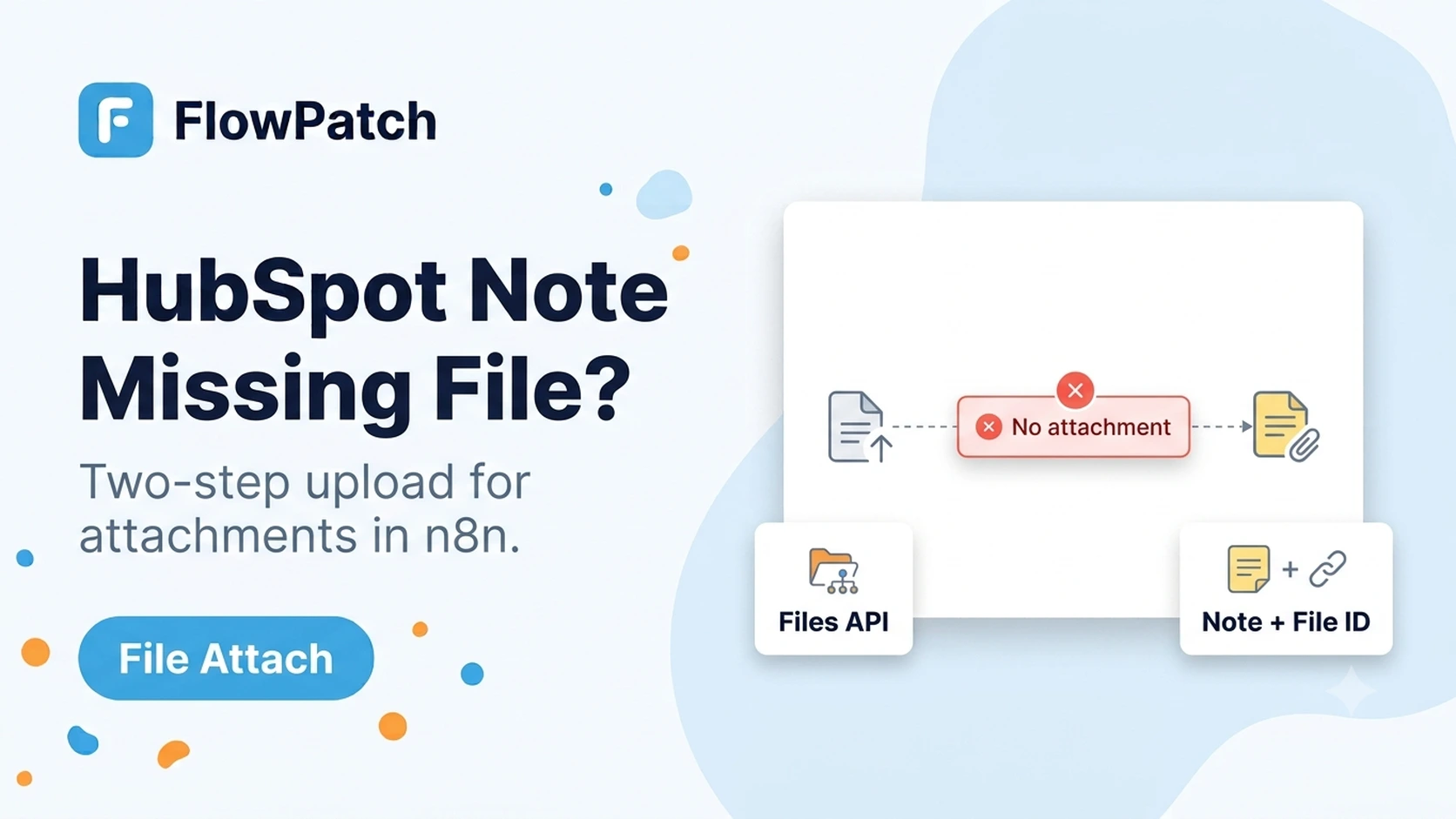
A note with an attachment is two HubSpot operations, not one
It's tempting to look for a single "create note with attachment" call, but HubSpot's engagement model separates the file itself from the note that references it. The file has to exist in HubSpot's file storage first, with its own file ID, before a note engagement can point to it. A workflow that creates the note first and tries to attach a file afterward, or that never calls the Files upload endpoint at all, ends up with a note that has text content but no visible attachment — and HubSpot does not reject this as an error, because a note without an attachment is a perfectly valid note.
This explains a pattern several n8n Community threads describe: the workflow runs green, the note appears in HubSpot's timeline, and only a manual check reveals the attachment is missing. There's no error to chase because, from HubSpot's side, nothing went wrong — the workflow simply never asked it to attach anything.
Before touching HubSpot at all, confirm the binary data is actually in the item
n8n represents file content as binary data attached to an item, separate from the item's regular JSON fields, and not every node passes binary data through automatically. A node that transforms or filters items without explicitly configured to keep binary data can silently drop it, so the HubSpot upload step downstream receives an item with no binary property even though an earlier node clearly "had" the file.
This is the root cause behind errors like "the item has no binary field" and the null-reference error some users see ("Cannot read properties of null (reading 'name')") when a node further downstream tries to read binary metadata that never arrived. If you're building this from a Webhook node receiving a multipart/form-data upload, also confirm your n8n version correctly surfaces binary data for that content type — this has been a reported gap for some webhook configurations receiving multipart file uploads.
Diagnose this before assuming HubSpot is the problem: add a temporary node right before the HubSpot upload step and inspect its input in n8n's execution view. Confirm a binary property actually exists on the item, with the file name, mime type, and a non-empty size — if any of those are missing or wrong, the fix is in the earlier part of the workflow, not in how you call HubSpot.
- Check the binary property exists on the item immediately before the HubSpot upload step, not just earlier in the workflow.
- Confirm the file name and mime type are set correctly — some HubSpot upload failures are actually a missing/incorrect mime type, not a missing file.
- If receiving files via a Webhook node, verify your n8n version correctly parses multipart/form-data into binary data for your content type.
- Set node options to explicitly keep/pass through binary data where a node offers that setting, rather than assuming it happens by default.
Uploading the file to HubSpot's Files API
Once the binary data is confirmed present on the item, upload it using an HTTP Request node configured for multipart form data against HubSpot's Files API, with the file itself as one form field and the folder/access-control metadata HubSpot requires as other fields. The response includes a file ID — this is the value you need for the note step, not the file's name or its public URL.
Set the file's access control appropriately for what the note is for — HubSpot's Files API supports different visibility levels, and a file meant only for internal CRM use should not default to a publicly accessible URL. Getting this wrong doesn't break the note attachment, but it can expose a file that should have stayed private.
POST https://api.hubapi.com/files/v3/files
Content-Type: multipart/form-data

Form fields:
  file: <binary file content>
  options: {"access":"PRIVATE"}   // or another access level appropriate to the use case
  folderPath: "/notes-attachments"

Response includes:
  { "id": "<fileId>", ... }   // this fileId is what the note needs next
Creating the note engagement and attaching the uploaded file
With the file ID from the previous step, create the note engagement through an HTTP Request node against the engagements/notes endpoint, including the file's ID in the note's attachment field alongside the note body and its association to the relevant contact, company, or deal. Community reports of notes failing to create via the HubSpot API in n8n often trace back to a required field being missing from this call — commonly a required timestamp field on the engagement — rather than the attachment step specifically, so verify the note creates successfully without an attachment first, then add the attachment reference as the next isolated change.
Confirm the association is set correctly in the same call or immediately after — a note with a valid attachment but no association to any CRM record is technically created but will not appear where you expect it in HubSpot's UI, since notes are surfaced through the timeline of the record they're associated with.
Debug the two steps independently, not as one combined operation
When the whole workflow fails to produce a visible attachment, test the Files upload step alone first: confirm it returns a valid file ID and that the file actually appears in HubSpot's file manager. Only once that's confirmed working should you test whether the note-creation step correctly references that ID.
This separation matters because the two most common failure points — binary data not reaching the upload step, and the note-creation call missing the attachment reference or a required field — produce an identical symptom from the outside (a note with no attachment) but need completely different fixes. Debugging them as one combined black box wastes time chasing the wrong half.
If the file uploads successfully to HubSpot's file manager but the note still shows no attachment, the problem is in the note-creation call's attachment reference or association — not in the file upload.
Attaching more than one file to the same note
A note that needs several attachments — a signed contract plus a supporting spreadsheet, for example — still follows the same two-step model, just repeated: upload every file to the Files API individually first, collecting a file ID for each one, then create a single note engagement that references the full array of file IDs rather than one. Do not try to bundle multiple files into a single Files API call; the upload endpoint is built around one file per request.
In n8n, this means looping over each file (using Split In Batches or an equivalent) through the upload step, collecting the resulting file IDs with an Aggregate or Set node into a single array, and only then making the one note-creation call with that complete array. Creating the note before all uploads have finished, or creating a separate note per file when a single note with multiple attachments was intended, are both easy mistakes when the loop and the final note-creation step aren't clearly separated.
If any one file in the batch fails to upload, decide upfront whether the note should still be created with the files that did succeed, or whether the whole operation should be treated as failed and retried as a unit — HubSpot has no built-in concept of a partially-attached note, so this is a workflow-design decision, not something the API enforces for you.
Verification checklist
- Confirmed binary data (with correct file name and mime type) is present on the item immediately before the Files upload step.
- Files API upload call returns a valid file ID and the file appears in HubSpot's file manager.
- File access level set appropriately for the intended use, not left at an unintended default.
- Note-creation call includes the file ID from the upload step, a required timestamp, and a valid association to the target record.
- For multi-file notes, all uploads complete and their file IDs are collected before the single note-creation call runs.
- Tested the upload step and the note-creation step independently before assuming either one in isolation.
What this guide is based on
HubSpot's two-step file-then-note model comes from HubSpot's Files API and engagements/notes API documentation. The n8n binary-data symptoms referenced (missing binary field, webhook multipart handling) come from n8n Community threads and n8n's own GitHub issue tracker describing the same class of binary-data-not-passing-through problem, used here to explain the mechanism rather than as HubSpot-specific evidence.
Frequently asked questions
Can the built-in HubSpot node's Note operation upload a file directly?
It creates the note text/association, but the file itself needs to be uploaded to HubSpot's Files API separately first, then referenced by its file ID when creating the note. Use an HTTP Request node for the upload step with the same credential.
Why does the note create successfully but show no attachment, with no error anywhere in the workflow?
HubSpot doesn't reject a note for having no attachment — it's a valid note either way — so a missing upload step or a missing attachment reference in the note-creation call produces silent success, not an error. Debug the upload step and the note-creation step separately to find which one is missing the file.
Does the file need to be public for the note attachment to display in HubSpot?
No — set the access level appropriate to your use case (often PRIVATE for internal CRM attachments). Visibility affects who can access the file directly, not whether it displays correctly as a note attachment inside HubSpot's own UI.