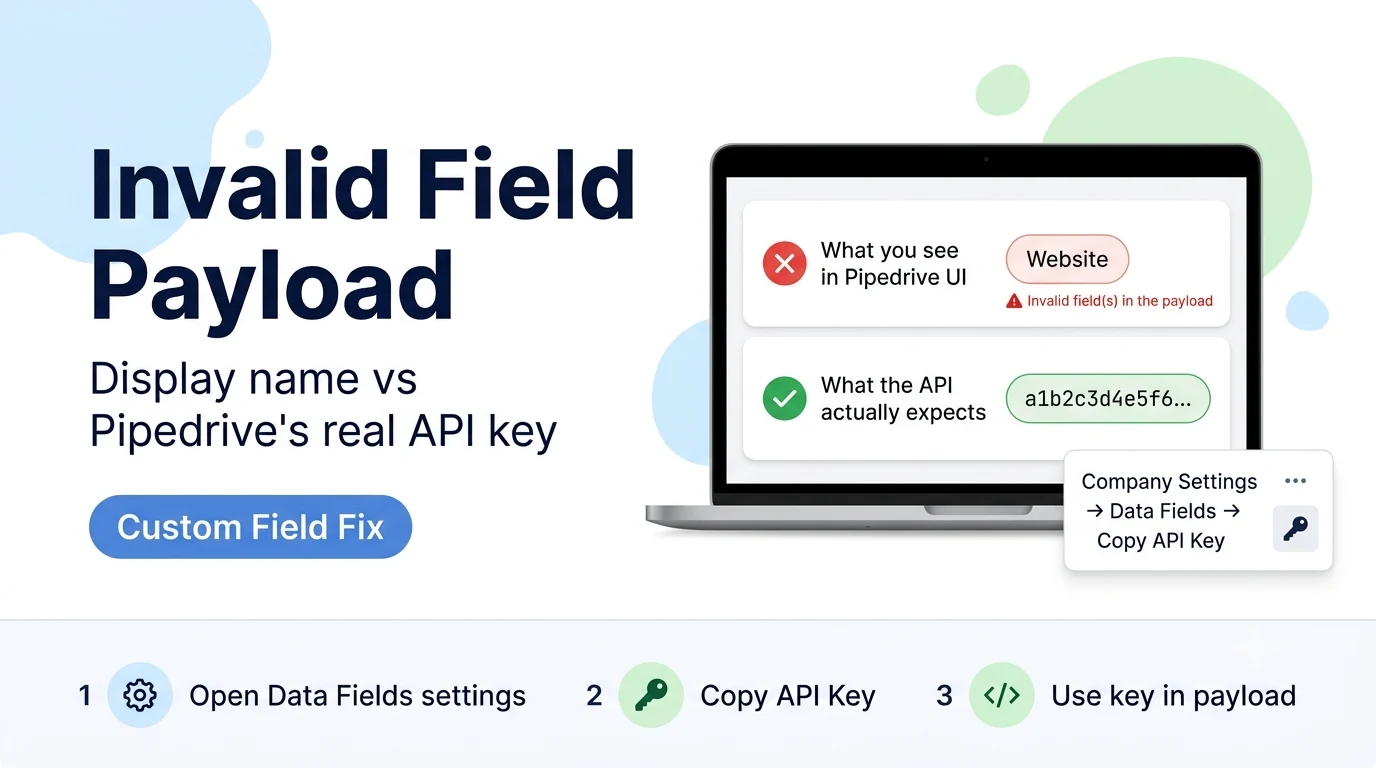
Why the field's visible name never works in the payload
Every standard Pipedrive field (title, value, person_id) has a simple, predictable API key that matches what you'd expect. Custom fields do not — Pipedrive generates a unique internal key (a 40-character hash, unrelated to the field's display name) the moment a custom field is created, and that hash is the only key the API accepts for reading or writing that field's value.
This trips up almost everyone who builds a Pipedrive integration for the first time, because Pipedrive's own web UI never shows you the hash by default — you interact entirely with the human-readable label. n8n's node (and any direct API call) has no way to translate "Website" into the correct key automatically unless you explicitly map it yourself.
How to find the real API key for a custom field
In the Pipedrive web app, go to Company Settings (or Tools and Apps, depending on your plan) → Data Fields, choose the correct tab for the object the field belongs to (Deal fields, Person fields, Organization fields, etc.), find your custom field in the list, and open its three-dot menu. Select "Copy API key" — this copies the exact hash string the API expects, ready to paste directly into your n8n payload or expression.
If you'd rather confirm it programmatically (useful when scripting field mappings for many fields at once), call the relevant fields endpoint and match on the field's name property to find its key:
GET https://yourcompany.pipedrive.com/api/v2/dealFields
x-api-token: {{your_api_token}}

# Response includes objects like:
# {
#   "key": "a1b2c3d4e5f6...",   <- this is what you put in your payload
#   "name": "Website",           <- this is only the display label
#   "field_type": "varchar"
# }
Using the key once you have it
With the API v1 node, custom field keys sit as flat top-level properties on the record object being sent. With the newer API v2 node and endpoints (see the separate migration guide on this site for the full v1-to-v2 change), custom fields are nested under a custom_fields object instead — using the flat-key format against a v2 endpoint will also fail, just with a different error, so make sure the payload shape matches whichever API version you're actually calling.
// v1-style payload (flat key)
{
  "title": "New Deal",
  "a1b2c3d4e5f6...": "https://example.com"
}

// v2-style payload (nested under custom_fields)
{
  "title": "New Deal",
  "custom_fields": {
    "a1b2c3d4e5f6...": "https://example.com"
  }
}
Dropdown and multi-select custom fields need an extra step
Text and number custom fields just need the correct key. Dropdown (single-option) and multi-select custom fields go one level deeper: the field itself has a key, but each individual option inside a dropdown also has its own numeric ID, and the API expects that option ID as the value — not the option's visible text label. Look up the field's options list (included in the same fields endpoint response, under an options array) to find the correct numeric ID for the option you're trying to set, rather than assuming the readable label will be accepted.
Sources checked for this guide
The distinction between a custom field's display name and its internal API key, and the Company Settings → Data Fields → "Copy API Key" location, are confirmed by a resolved report on the n8n Community forum describing this exact "Invalid field(s) in the payload" error when creating a Pipedrive organization with custom properties.