Why the field looks missing even when the credential is healthy
This problem is deceptive because the obvious checks all pass. The HubSpot Service Key connects. Standard properties such as first name, last name, phone, and lifecycle fields appear. The custom field exists in HubSpot. You may even have crm.objects.contacts.read, crm.objects.contacts.write, and crm.schemas.contacts.read on the key. Yet clicking Add Property does not show the field you just created.
A current n8n Community case from August 21, 2026 reproduced exactly that setup. The user had custom Contact fields for Lead Category, Lead Score, Requested Service, Budget, Lead Reason, and Customer Message. Reconnecting the Service Key did not help because authentication was not the problem. The custom fields were one level deeper in the node UI.
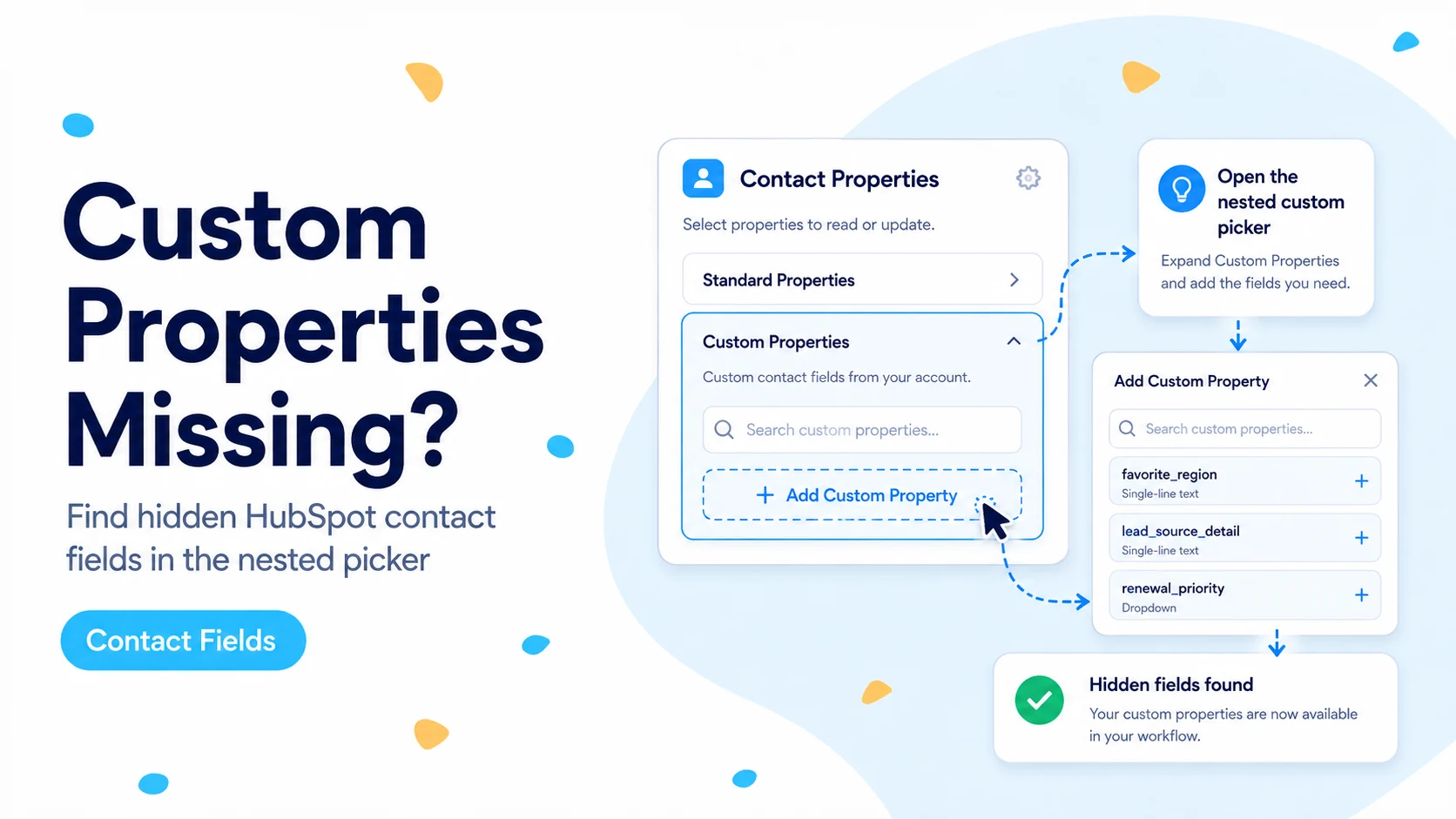
The first Add Property dropdown contains a Custom Properties option. Selecting that exposes a second custom-property control where n8n loads the portal-specific fields. That UI design makes the problem look like a cache or scope failure when it is often just a nested picker.
If standard Contact fields load successfully, do not immediately conclude that OAuth is required. First look for the Custom Properties entry inside the node’s field selector.
The fast fix in the HubSpot Create or Update Contact node
Open the HubSpot node and choose Contact → Create or Update. In the section where you add optional fields, click Add Property. Instead of searching the first list for your HubSpot field label, select Custom Properties. n8n then exposes an Add Custom Property control. Use that second control to choose the custom field.
Map the value only after the property itself is selected. For example, if your form or AI step outputs a numeric lead score, select the Lead Score HubSpot property first and then map the score expression into its value. Keeping property selection and value mapping separate makes debugging much easier.
If you created several fields at once, add them one by one and execute the node with a single test contact before mapping all of them. That isolates a field-type problem from a picker problem.
- Add Property → Custom Properties.
- Add Custom Property → choose the portal-specific field.
- Map the input value after the correct field is selected.
- Test one custom property on one disposable contact before mapping the full payload.
Why a Service Key is not the reason the fields are hidden
n8n’s current credential documentation recommends Service Key authentication for the regular HubSpot node. The same documentation lists contact read, contact write, and contact schema scopes among the recommended scopes for the HubSpot node. That means a working Service Key is a normal supported setup for this action node.
HubSpot’s current Properties API documentation also exposes endpoints for retrieving all properties on an object. That gives you a clean way to separate “HubSpot cannot see this property” from “n8n’s first dropdown does not display this property.”
If your Service Key can successfully create or update a standard contact field, changing to OAuth is usually unnecessary for this symptom. Authentication changes create extra variables: a new token, a different scope grant, and possibly a different app. Do that only when you have evidence that the key cannot access the Properties API or the target object.
If the nested picker is empty, verify the field directly in HubSpot
Use HubSpot’s Properties API to confirm the custom property exists in the same account connected to n8n. HubSpot’s current date-based endpoint can retrieve all Contact properties. You can run the request in an n8n HTTP Request node using the same HubSpot credential, or call the endpoint outside n8n with a bearer token.
The response contains each property’s human label, internal name, type, fieldType, options, and metadata. The internal name is what matters for API work. A field labeled Lead Category may have an internal name such as lead_category, but you should retrieve the actual value rather than guessing it.
If the property does not appear in the API response, the problem is on the HubSpot side: wrong account, wrong object type, archived property, or insufficient access. If it appears in the API but not in n8n’s nested picker, you have isolated the issue to the connector UI or its property-loading behavior.
GET https://api.hubapi.com/crm/properties/2026-03/contacts
Authorization: Bearer <service-key>

Check each result for:
- label
- name   ← internal property name
- type
- fieldType
- options
Check the property type before blaming the mapping
A property can be visible and still reject the value you send. HubSpot distinguishes strings, numbers, dates, datetimes, booleans, and enumeration fields. The fieldType controls how a property appears in HubSpot, while the type controls the stored data shape. A dropdown may look like text in the UI but is still an enumeration with specific option values.
For AI lead-scoring workflows, Lead Score should normally map to a numeric property if you intend to sort or calculate on it. A HOT/WARM/COLD classification is better represented by an enumeration field whose internal option values are known. Free-form model explanations fit a text or textarea field better than a dropdown.
Do not solve a validation error by changing the HubSpot property type blindly. First inspect the property definition from the API and normalize the n8n value to match that contract.
What to do when a brand-new property still does not load
First save the property in HubSpot and verify it appears in the Properties API. Then reopen the n8n node and enter the nested Custom Properties picker again. If the list is cached in the open editor session, closing and reopening the node is a lower-risk test than reconnecting credentials.
If you are working in a long-lived workflow tab, duplicate the HubSpot node temporarily and check whether the new node loads the custom field. This distinguishes an editor-state problem from a credential problem without changing the production node.
For urgent work, use an HTTP Request node and update the contact by internal property name. HubSpot’s object APIs accept a properties object, so you are not blocked by the visual picker as long as the Service Key has the required contact write access.
PATCH https://api.hubapi.com/crm/objects/2026-03/contacts/<contactId>

{
  "properties": {
    "lead_score": "87",
    "lead_category": "HOT"
  }
}
Common mistakes that create a second problem
Do not type the visible HubSpot label into an API payload unless it also happens to be the internal property name. Labels can contain spaces and can be renamed; internal names are the stable API identifiers.
Do not create a duplicate custom property because you assume the first one is broken. Duplicate fields such as Lead Score, Lead Score 2, and AI Lead Score make later reporting and integrations harder to maintain. Verify the existing property before adding another.
Do not grant every HubSpot scope simply to make a dropdown populate. Over-permissioning hides the real cause and increases the impact of credential exposure. Keep the key limited to the objects and schemas this workflow actually needs.
- Use internal property names for API calls.
- Confirm object type: Contact property, not Company or Deal property.
- Confirm the n8n credential points to the same HubSpot account where the property was created.
- Do not duplicate fields as a cache workaround.
- Do not broaden scopes unless the API response proves access is missing.
Verification checklist for a custom-property mapping
Create one disposable contact or use a clearly labeled test contact. Map a single custom property in the nested picker and execute the node. Open the contact in HubSpot and verify the exact property changed. Then repeat with a value at the edge of the expected data type, such as a score of 0 or the least common dropdown option.
Finally, retrieve the contact again through the API or HubSpot node and confirm the stored value is what your workflow expects. This round-trip test catches cases where the write technically succeeds but HubSpot normalizes the value differently than your downstream logic assumes.
- Property appears in HubSpot’s Properties API.
- n8n nested Custom Properties picker can select it, or HTTP fallback can address it by internal name.
- One write succeeds on a test contact.
- One read-back returns the same logical value.
- No extra scopes or duplicate properties were added unnecessarily.
What this guide is based on
The exact 2026 reproduction and nested-picker fix come from n8n Community. Credential support and recommended methods come from n8n’s HubSpot credential documentation. The API verification steps come from HubSpot’s current Properties API.
Frequently asked questions
Do I need to switch from a Service Key to OAuth to see my custom contact fields?
No. n8n’s documentation recommends Service Key authentication for the HubSpot node, and a working key that can create or update standard contact fields is a supported setup. Changing auth adds new variables without addressing the real cause.
Where are the custom fields hidden in the n8n contact node?
The first Add Property list is not the full portal property list. Select the Custom Properties option, which exposes a second Add Custom Property control, and pick your HubSpot field there by its internal property name or loaded label.
What if the nested Custom Properties picker is still empty?
Verify the field directly with HubSpot’s Properties API using the same account and credential. If the property is missing from the API response, the problem is on the HubSpot side (wrong account, wrong object, archived property). If it is in the API but not in n8n, the issue is the connector’s property loading.