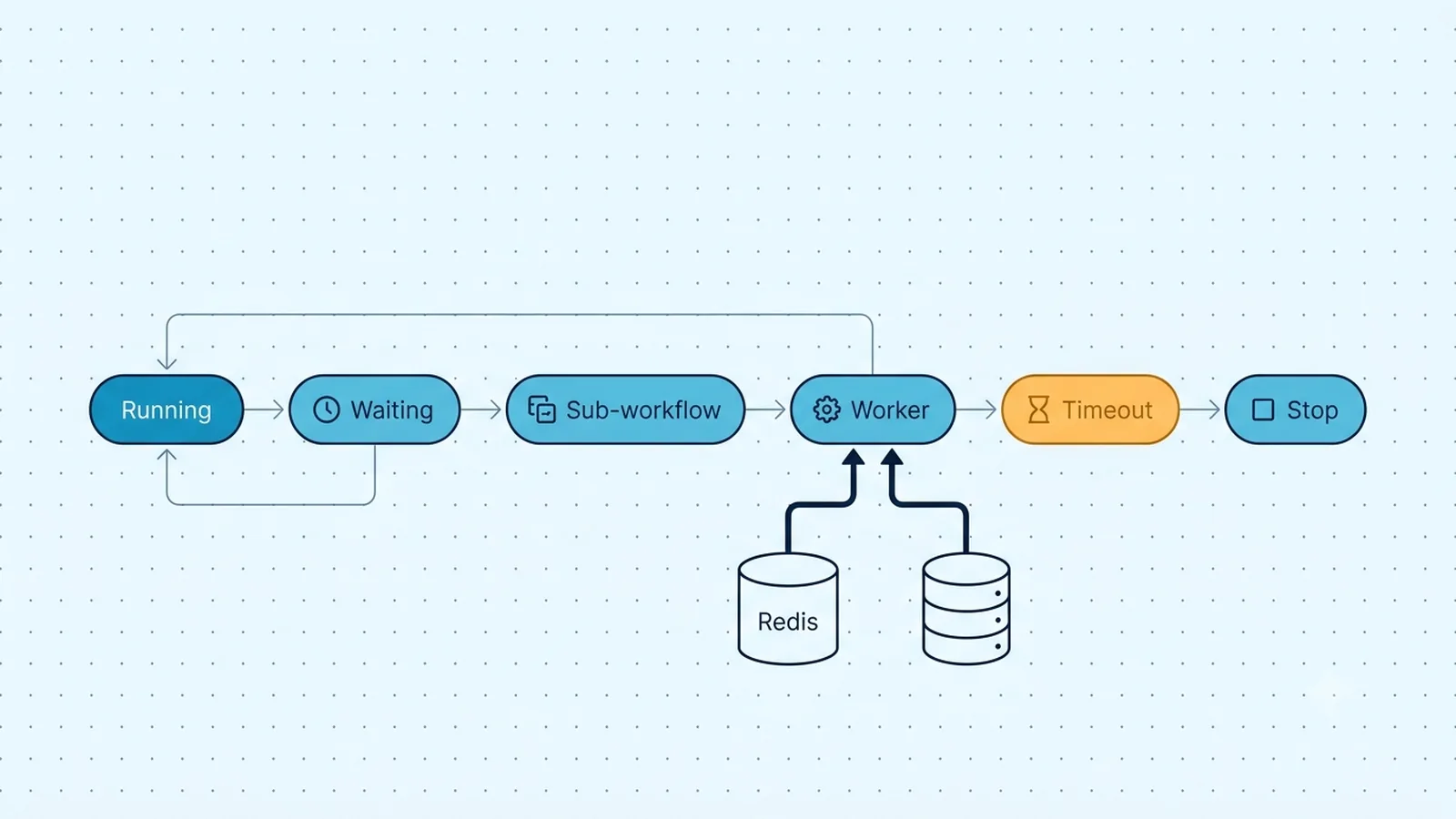
Classify what “Running” actually means
Open the execution and find the last node with a start marker or output. A workflow that is still consuming CPU, waiting on an HTTP response, or retrying a node is different from an execution whose process vanished. Do not infer the cause from the status badge alone. Record the execution start time, current node, execution mode, and whether the same workflow can complete with a small input. If multiple unrelated workflows all freeze at once, infrastructure is more likely than a single node configuration.
Also distinguish Running from Waiting. The Wait node intentionally pauses an execution and can resume after a time interval, at a specified time, or from a webhook call. n8n stores waiting execution data so the workflow can continue later. For waits longer than 65 seconds, current documentation says the execution is offloaded to the database rather than keeping the process alive. That is healthy behavior, not a hung worker.
Check instance and workflow timeout layers
On self-hosted n8n, EXECUTIONS_TIMEOUT sets the default workflow timeout in seconds. Current docs list its default as -1, which disables the default timeout. EXECUTIONS_TIMEOUT_MAX sets the maximum timeout a user can configure for an individual workflow; current docs list 3600 seconds as the default maximum. A workflow-level timeout cannot exceed that ceiling. If production runs die at a repeatable duration, compare that duration with both variables and the workflow's own timeout setting before blaming the external API.
Manual and production executions can also behave differently because they may run on different processes or workers depending on your deployment. In queue mode, OFFLOAD_MANUAL_EXECUTIONS_TO_WORKERS controls whether manual runs go to workers; its default is false. That means “works manually, times out in production” can be a worker-path problem even when the workflow JSON is identical. Compare where each mode actually executes.
Timeout and execution controls to inspect
| Control | Current documented default | Purpose |
|---|
| EXECUTIONS_TIMEOUT | -1 | Default timeout in seconds; -1 disables it |
| EXECUTIONS_TIMEOUT_MAX | 3600 | Maximum per-workflow timeout setting in seconds |
| OFFLOAD_MANUAL_EXECUTIONS_TO_WORKERS | false | Whether manual executions run on workers in queue mode |
| N8N_CONCURRENCY_PRODUCTION_LIMIT | -1 | Concurrent production execution cap when applicable |
Inspect Wait and Execute Sub-workflow nodes
A Wait node can make a workflow look idle for hours while remaining completely valid. Confirm its resume condition and the expected resume time or webhook. If the workflow waits for a callback, verify that the resume URL was delivered to the external system and that the callback is reaching the same n8n instance. If the callback URL points at an old deployment or a non-public host, the execution will remain paused.
The Execute Sub-workflow node has a Wait for Sub-Workflow Completion option. When enabled, the parent does not continue until the child finishes. Open the child execution and debug it directly. A slow or waiting child makes the parent appear stuck even though the parent is functioning as configured. If the parent does not need the child's output, disabling that option can decouple them, but only do that when downstream nodes do not depend on the returned child data.
Check worker and queue health on scaling deployments
In queue mode, production executions are handed to worker processes through Redis while execution state is persisted in the database. If a worker crashes, loses connectivity, or stops renewing its job lock, the execution can remain in an abnormal state until queue recovery logic handles it. Check worker logs, Redis connectivity, database connectivity, worker restarts, and queue health around the execution start time. A single dead worker with many affected execution IDs is stronger evidence than a generic Running badge.
Current queue-mode variables include worker lock duration, lock renewal time, and stalled-job checks. Do not change those values as a first response. If defaults worked before, identify why the worker stopped renewing its lease: OOM kills, container restarts, network loss, or host pressure are common. Fixing the cause is safer than stretching lease values until stale work is hidden for longer.
Stop the execution without creating duplicate side effects
If the execution is genuinely stuck, stop it from the Executions view. n8n also exposes a stop-execution API in current builds for running or waiting executions. Before retrying, inspect whether the last external write may already have succeeded. Payment, CRM update, email send, and record-create nodes can commit remotely and then lose the response locally. Blindly retrying can duplicate those side effects.
For workflows with non-idempotent writes, store a business key or idempotency token before the risky node and query the destination during recovery. When the original execution is orphaned after a process crash, restarting n8n may restore service but does not prove whether the remote operation happened. Treat execution cleanup and business-state reconciliation as separate tasks.
If the stop control cannot complete because the runner or worker disappeared, restore the affected n8n process or worker first, then stop and reconcile the stranded execution. A service restart may restore processing, but it does not prove whether the last remote API call committed. After recovery, inspect the last completed node and use an idempotency key or destination-side lookup before replaying any non-idempotent write.
Make future stalls observable
Add explicit timeouts to external calls where the node supports them, and keep retry windows bounded. Use the Wait node for deliberate long backoff instead of holding an HTTP request open for minutes. For sub-workflows, decide explicitly whether the parent needs to wait. In queue mode, monitor worker restarts, memory pressure, Redis reachability, and the count of Running/Waiting executions so a stranded worker is visible before users report it.
Execution-data pruning does not clean active Running or Waiting executions. n8n's pruning documentation specifically excludes new, running, and waiting states from normal pruning. Therefore, lowering EXECUTIONS_DATA_MAX_AGE will not solve an orphaned active record. Resolve or stop the execution; use pruning only for finished execution history.
Verification checklist
- The execution's current node or wait condition is identified rather than inferred from the status badge.
- Any repeatable timeout duration matches the intended workflow or instance timeout configuration.
- Wait nodes resume from the expected time or callback and are not mistaken for active CPU work.
- A parent waiting on a sub-workflow has a corresponding child execution whose state is understood.
- Queue-mode workers, Redis, and the database show no crash or connectivity event at the time the execution stalled.
- A stopped execution is retried only after checking whether the last external side effect already committed.
Documentation and community threads cited
These fixes follow current n8n documentation and community reports. Primary sources:
Frequently asked questions
Does a long Wait node mean an n8n execution is stuck?
No. Waiting is an intentional execution state. For waits longer than 65 seconds, n8n can offload execution data to the database and reload it when the resume condition is met. Verify the resume time or callback before stopping it.
Why does a workflow time out in production but work when I run it manually?
Check both timeout settings and execution placement. In queue mode, manual executions can stay on the main process while production executions run on workers unless OFFLOAD_MANUAL_EXECUTIONS_TO_WORKERS is enabled, so the two runs may use different infrastructure.
Will execution-data pruning remove an execution stuck in Running?
No. n8n's pruning guidance excludes active new, running, and waiting executions. Stop or recover the execution and fix the worker/node cause; changing EXECUTIONS_DATA_MAX_AGE is not a cleanup mechanism for active stuck runs.