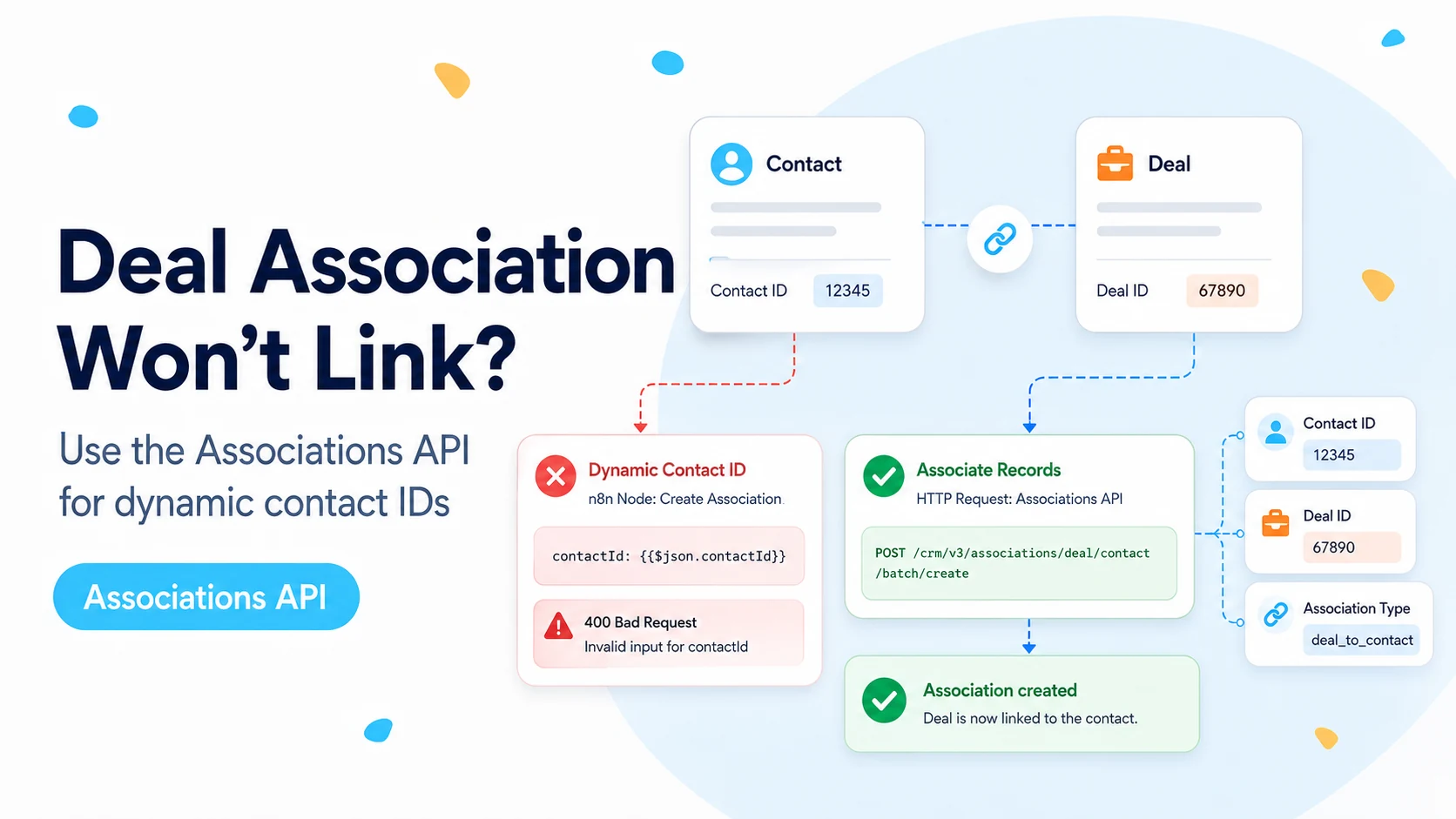
The problem is the connector field, not the HubSpot relationship model
A common lead workflow is straightforward: receive a form, create or upsert the Contact, create a Deal, and associate the new Deal with that Contact. The problem appears when the HubSpot deal node exposes an association field that expects a Contact identifier but the editor will not let you bind the dynamic ID returned by the previous node.
A February 2026 n8n Community case describes exactly that behavior: the user could create the Contact and Deal, but clicking Expression on the association field did not allow the dynamic value to be inserted. The recommended workaround was to use an HTTP Request node against HubSpot’s associations API.
That workaround is structurally sound because HubSpot treats associations as first-class CRM relationships. You do not need to recreate either record. Once you have the Deal ID and Contact ID, you can create the relationship in a separate API request.
Keep record creation and record association as separate operations when the native node UI cannot express the dynamic relationship cleanly.
Capture the Contact ID and Deal ID explicitly
After Create or Update Contact, inspect the node output and confirm the HubSpot record ID. HubSpot object IDs should be treated as strings in your workflow even when they contain only digits. Do the same after the Create Deal node.
Do not pull the visible contact name, email, or deal name into the association URL. The Associations API works with record IDs. If the Contact node is an upsert, its returned ID is especially valuable because it works whether the contact was newly created or already existed.
For a simple one-item flow, you can reference the prior node output directly. For multi-item workflows, preserve item pairing or carry the IDs forward in explicit fields so a deal cannot accidentally be associated with the contact from another item.
After Contact node:
contactId = {{ $('Create or update contact').item.json.id }}

After Deal node:
dealId = {{ $('Create deal').item.json.id }}
Use HubSpot’s default association endpoint for the normal case
HubSpot’s current Associations API documents a default unlabeled association endpoint. For a Deal linked to a Contact, make a PUT request from the deal record to the contact record. The current date-based API uses /crm/objects/2026-03 followed by the object types and IDs.
This is the right choice when you simply need the contact to appear on the deal with HubSpot’s normal relationship and do not need a custom label such as Decision maker or Billing contact.
In n8n, configure an HTTP Request node after both records exist. Reuse the HubSpot credential rather than pasting a bearer token into the workflow body. Keep the request body empty for the default association endpoint.
PUT https://api.hubapi.com/crm/objects/2026-03/deals/{{ $('Create deal').item.json.id }}/associations/default/contacts/{{ $('Create or update contact').item.json.id }}

Authentication: HubSpot credential
Body: none
If you need a label, retrieve the correct association type instead of guessing
Default association is enough for many sales workflows. If the relationship needs a label, HubSpot uses association type IDs. The IDs are directional: Deal to Contact is not the same direction as Contact to Deal. HubSpot’s current reference lists the default Deal-to-Contact type ID as 3 and Contact-to-Deal as 4.
For custom labels, do not copy an ID from another portal or from an old screenshot. Retrieve the available labels for the exact object pair in the connected HubSpot account. Custom association labels are account-specific.
Once you know the type ID and category, use the labeled association endpoint and request body documented by HubSpot. Keep this out of the first implementation unless the label has real business meaning; an unlabeled association is simpler and less brittle.
Example lookup for available labels:
GET https://api.hubapi.com/crm/associations/2026-03/deals/contacts/labels

Use the returned typeId and category for a labeled association.
The real production risk is pairing the wrong contact and deal
A one-record test can hide an item-linking bug. When several leads enter the workflow in one execution, expressions that refer to another node’s .item value depend on n8n’s item pairing. If the branch structure breaks that pairing, the association request can point to the wrong record.
The safest pattern is to create explicit fields such as contactId and dealId in the same item immediately before the association step. Use a Merge or Edit Fields node if necessary. Then build the URL from $json.contactId and $json.dealId rather than reaching across several branches.
Add a sanity check before the API call. Require both IDs to be non-empty strings and, for high-value workflows, carry the contact email and deal name alongside them for logging. The log gives a human-readable audit trail while the API still uses IDs.
Association input item:
{
  "contactId": "123456789",
  "dealId": "987654321",
  "contactEmail": "test@example.com",
  "dealName": "Inbound - test@example.com"
}
Make association retries harmless
Network errors and 5xx responses happen. Your workflow should be able to retry the association call without creating a second Contact or Deal. That is another reason to perform association after the records have been created and their IDs saved.
Persist the record IDs in the execution data or downstream job state before the association request. If the request fails, retry only the association. Do not rerun the entire create-contact/create-deal chain unless those operations are themselves idempotent.
For backfills, search or upsert records first and then associate them. Treating the relationship as its own step makes recovery far easier than coupling record creation and relationship creation into one opaque connector action.
Verify the relationship from both the API and HubSpot UI
After the PUT succeeds, open the Deal in HubSpot and confirm the intended Contact appears in its associated records. Then retrieve associations through the API if this relationship drives downstream automation. UI verification catches obvious mistakes; API verification proves your workflow can read the same relationship it just wrote.
Test a second lead and compare IDs. The new deal should be associated only with the new or matched contact for that lead. If both deals point to the same contact, the bug is in your item mapping rather than HubSpot’s associations endpoint.
Also test the upsert path where the Contact already exists. The association should use the existing Contact ID returned by the upsert and still link the newly created Deal correctly.
- Both Contact ID and Deal ID are captured from node outputs.
- Association request runs after both records exist.
- HubSpot UI shows the expected Contact on the Deal.
- Existing-contact upsert path associates correctly.
- Retrying the association does not recreate records.
Why this narrow workaround is worth documenting
The search intent is much narrower than “how to integrate n8n with HubSpot.” The user already has authentication, record creation, and workflow logic working. They are blocked by one connector field that will not accept the dynamic identifier.
That is exactly the kind of troubleshooting query where a short forum answer exists but a production-ready explanation is missing: which ID to use, which API direction to call, how to avoid mismatched items, how to retry safely, and how to verify the relationship. Solving those operational details is what makes the guide useful beyond repeating the forum reply.
References used here
The UI symptom comes from a February 2026 n8n Community case. The current request structure, default association endpoint, and association type IDs come from HubSpot’s current Associations API documentation.
Frequently asked questions
Can I hard-code the contact ID to make the deal association work?
Do not. Create the contact and deal normally, capture both returned record IDs, then associate them with a HubSpot Associations API call in an HTTP Request node.
Which endpoint associates a deal with a contact?
For an ordinary unlabeled deal-to-contact relationship, HubSpot’s current date-based API supports a direct default-association PUT endpoint. Use a labeled association type only when you need a specific relationship label.
How do I stop the workflow from linking the wrong records?
Carry the exact IDs returned by the create steps forward and use those for the association call. Make the association step idempotent so a retry does not create duplicate links, and verify the pairing by reading the association back.