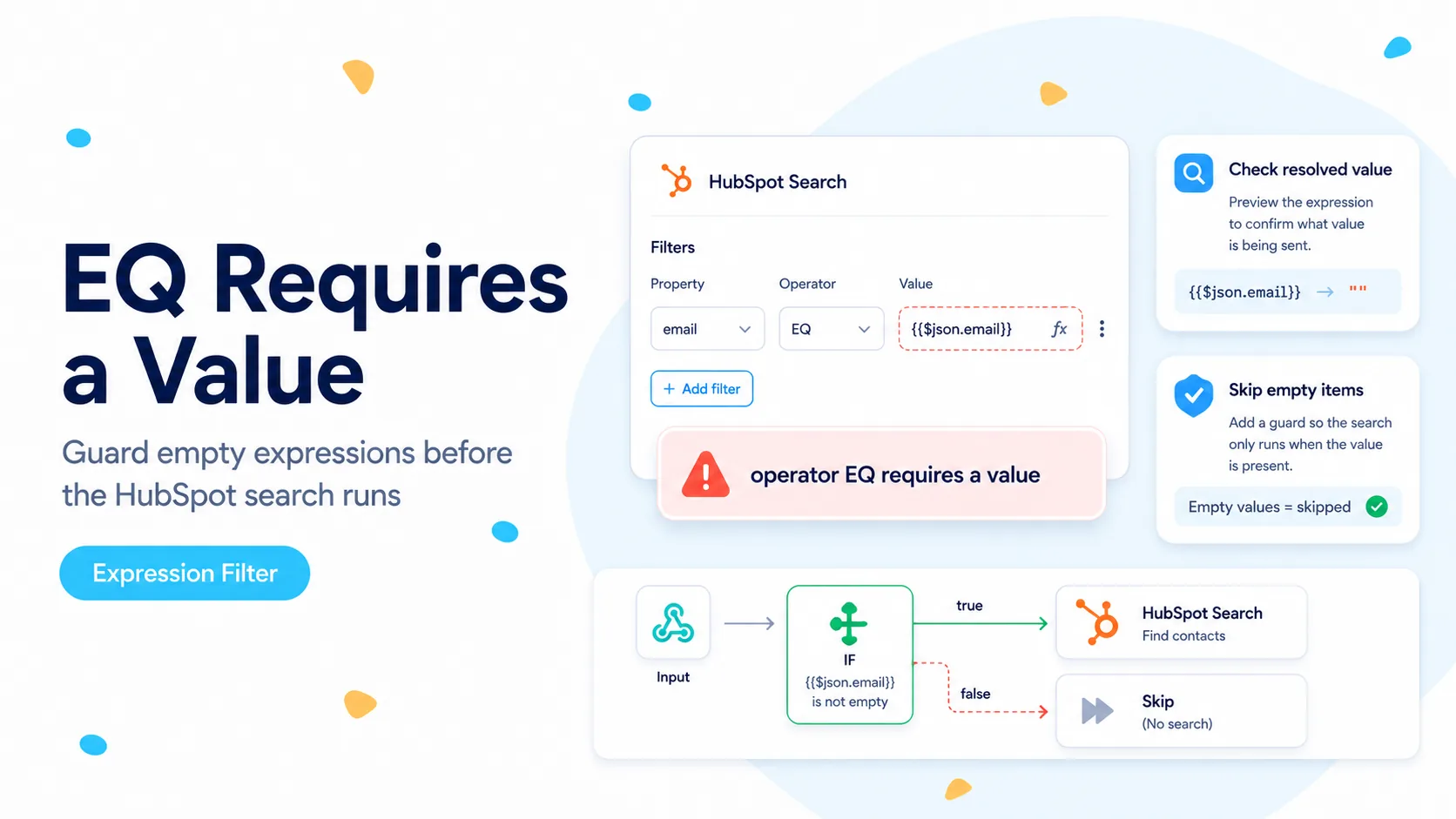
Read the error literally: HubSpot received EQ without a usable value
An older but still technically relevant n8n Community case shows a clean reproduction: HubSpot contact search succeeds when the filter value is fixed, but fails when the same field is switched to an expression. The raw error says the EQ operator requires a value. That is much more precise than n8n’s surrounding “unknown error” banner.
HubSpot’s current CRM Search documentation still defines EQ as an operator that compares a property to a specified value. The request body examples include propertyName, operator, and value together. If n8n renders the expression as missing for one item, the JSON contract is incomplete even though the expression preview may look correct for a different item.
This is usually a data-shape problem, not a HubSpot outage. The workflow must prove that the search key exists for every item that reaches the Search node.
A green expression preview for item 0 does not prove item 27 has the same field. Inspect the failing item index and its evaluated value.
Find the exact item whose search key is blank
Open the failed execution and inspect the input to the HubSpot node. Do not look only at the first item. Search for the field used in the filter, such as email, external_id, or phone. One missing value in a batch can fail that item even when the rest of the list is valid.
If the expression reaches back to an earlier node, verify n8n item linking. Expressions such as $('Webhook').item.json.email depend on paired-item context. After a Merge, Code node, aggregate, or branch, the item relationship can differ from what you expect. In those cases, copy the search key into the current item before the HubSpot Search node.
Normalize the value as data, not as presentation. Trim whitespace from emails and IDs, convert numeric identifiers to strings only if the HubSpot property is string-based, and treat undefined and null separately from legitimate values such as 0.
Before HubSpot Search, create a stable field:

searchEmail = {{ String($json.email ?? '').trim().toLowerCase() }}

Then route only items where:
searchEmail !== ''
Add an explicit guard before the HubSpot Search node
The safest production pattern is a Filter or If node directly before the search. The valid branch contains items with a non-empty search value; the invalid branch records the item for later review or follows a business-specific fallback.
Do not send an empty string just to satisfy the JSON field. An equality search for an empty value is not the same as “find contacts without an email,” and APIs may reject or interpret it differently. If the business intent is to locate records where a property is absent, use the presence operators HubSpot documents for that purpose.
A guard also prevents accidental broad searches. If an expression error ever caused the connector to omit the filter entirely, a workflow could retrieve many more records than expected. Rejecting blank search keys early is both a correctness and a safety control.
- Valid branch: search key exists and is non-empty.
- Invalid branch: log source item and reason.
- Never substitute a placeholder email or ID for a missing real key.
- Use presence operators only when presence is the actual business question.
Use HTTP Request to see the exact payload HubSpot expects
If the native HubSpot node keeps hiding the request shape, reproduce the search with an HTTP Request node. HubSpot’s current date-versioned CRM search endpoint accepts a POST body with filters. This lets you see exactly where the expression is placed and what value is sent.
Start with a known fixed value. Then replace only the value with the n8n expression. Compare the execution data between the working and failing versions. If the failing request shows an empty value, the diagnosis is finished; the problem is upstream data or expression evaluation.
Keep the test body minimal. Do not add sort rules, many properties, pagination, and several filter groups until one EQ filter works. Every extra field makes the comparison noisier.
POST https://api.hubapi.com/crm/objects/2026-03/contacts/search

{
  "filters": [
    {
      "propertyName": "email",
      "operator": "EQ",
      "value": "{{$json.searchEmail}}"
    }
  ],
  "limit": 10
}
Use HAS_PROPERTY when you are testing presence, not as a workaround
HubSpot documents HAS_PROPERTY and NOT_HAS_PROPERTY as operators that do not need a comparison value. They answer a different question from EQ. HAS_PROPERTY means “this property contains some value”; it does not mean “use EQ even though my expression is blank.”
This distinction matters in sync workflows. If a source row has no email, the correct behavior may be to skip it, search by another stable identifier, or create a review task. Searching HubSpot for contacts that merely have any email can return unrelated records and create a destructive upsert path.
Choose the operator from business intent first. Then validate the fields that operator requires.
Do not let a blank search key turn into a wrong-record update
The worst failure is not the 400 error; it is a workaround that removes the failing filter and then updates the first record returned. A contact sync should never guess which HubSpot record matches a source item.
Use a unique or near-unique search key such as normalized email or a dedicated external ID property. If the source can contain duplicates, define how the workflow handles multiple HubSpot results before enabling automatic updates. A safe default is to stop and log ambiguity rather than update an arbitrary record.
For high-value CRM data, carry the source identifier into the log alongside the HubSpot record ID chosen by the search. That creates an audit trail for later reconciliation.
Test the edge cases that cause expression filters to fail
Create a small input set that contains a valid email, an empty string, null, a missing field, whitespace-only text, and one malformed value. Run that set through the guard and confirm only the valid item reaches HubSpot Search.
Then test a batch where the search field comes from a branch or Merge. The goal is to prove item linking remains correct when more than one item is present. Many expression bugs stay hidden during single-item manual tests because every cross-node reference appears to point to the only available item.
Finally, test the no-match path. A valid search that returns zero results is not an error and should be handled differently from an invalid search request.
Verification checklist
The fix is complete when blank keys are rejected before the API call, valid keys generate a request with an explicit value, and zero-match results follow a deliberate branch. You should be able to inspect one execution and see exactly which source value produced each HubSpot search.
If the native node still fails with a visibly non-empty evaluated value, use the HTTP Request reproduction and capture the raw request/response before escalating. That separates connector serialization from upstream data quality.
- Every item reaching EQ has a non-empty evaluated value.
- Blank, null, and missing keys are routed away from HubSpot Search.
- HTTP Request reproduction succeeds with the same dynamic value.
- No-match and invalid-request paths are handled separately.
- Workflow never updates an arbitrary first result after a failed search.
Sources and further reading
The exact error wording and fixed-versus-expression reproduction come from an n8n Community thread. The filter contract and operator behavior are checked against HubSpot’s current CRM Search documentation.
Frequently asked questions
Why does a HubSpot search work with a fixed value but fail with an expression?
A fixed value always produces a value; an expression can resolve to undefined, null, or an empty string for at least one item. HubSpot then receives an EQ filter with no usable value and returns "operator EQ requires a value".
How do I stop blank search keys from reaching HubSpot?
Add a Filter or If node directly before the Search node. Route items with a non-empty, normalized key to the search; send blank items to a review or fallback branch. Do not send an empty string just to satisfy the JSON field.
When should I use HAS_PROPERTY instead?
Only when your intent is to test whether a property has any value, not as a workaround for a blank expression. HAS_PROPERTY answers a different question from EQ and can return unrelated records if misused in a sync.