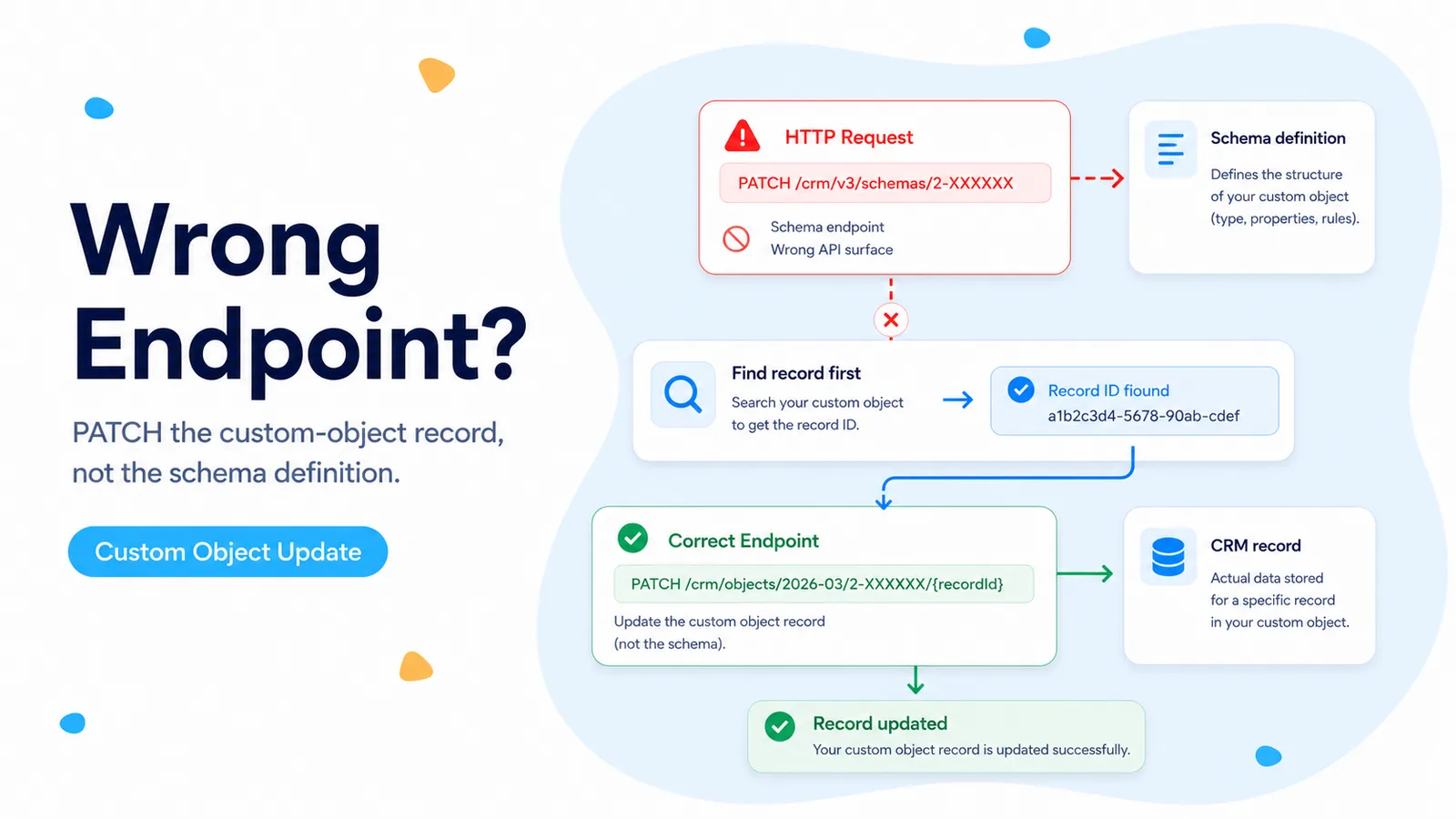
Why the schema endpoint is the wrong place to update a record
A custom object has two different API surfaces that look deceptively similar when you are building the request by hand. The schema describes the object itself: its name, labels, properties, and associations. A record is one instance of that object. Editing a schema is therefore comparable to changing a database table definition, while editing a record is comparable to updating one row.
A real n8n Community case used a PATCH request against `/crm/v3/schemas/2-52163237` while the actual goal was to find one custom-object record and populate properties extracted from email. That request was aimed at the definition layer. The fix is not a different JSON body on the same endpoint; the workflow needs the record API.
HubSpot’s current custom-object guide explicitly separates these concerns. Once a custom object is defined, records are managed through the objects API. For a current date-versioned request, an individual record is addressed as `/crm/objects/2026-03/{objectTypeId}/{recordId}`.
If the URL contains `/schemas/` and your goal is to change one customer/order/project record, stop there. You are on the wrong API surface.
Build the n8n workflow as search first, update second
Most automation inputs do not contain HubSpot’s internal record ID. They contain a business identifier such as an order number, account code, email-derived reference, or another custom property. That means the workflow needs a lookup step before the write step.
Use an HTTP Request node with `POST /crm/objects/2026-03/{objectTypeId}/search`. Put the identifying property in a filter and request only the properties needed for the decision. The response gives you the custom-object record ID. A second HTTP Request node then PATCHes that exact record.
Keeping lookup and write separate is valuable even if you could compress the logic into code. You can inspect the search response, handle zero matches, reject multiple matches, and prove the update used the intended record ID.
POST https://api.hubapi.com/crm/objects/2026-03/2-52163237/search

{
  "filterGroups": [{
    "filters": [{
      "propertyName": "external_order_id",
      "operator": "EQ",
      "value": "{{$json.orderId}}"
    }]
  }],
  "properties": ["external_order_id", "status"]
}

→ capture results[0].id

PATCH https://api.hubapi.com/crm/objects/2026-03/2-52163237/{{$json.id}}
{
  "properties": {
    "status": "processed"
  }
}
Do not blindly use results[0]
The most dangerous version of this workflow is one that assumes the search always returns exactly one record. A zero-result search can turn the next expression into an empty ID and produce a confusing 404. A multi-result search can update the wrong record while every node still shows green.
After the search node, add a branch for `total === 0`, `total === 1`, and `total > 1`. If the business key is supposed to be unique, more than one match is a data-quality incident, not something to solve by picking the first result. Route it for review or fix the property definition so the identifier is unique.
For a zero result, decide whether the workflow is allowed to create a new custom-object record. If creation is valid, use a separate POST to the object endpoint. If the record is expected to exist, fail loudly with the lookup value in the execution log.
- 0 matches: create only if that is the intended business rule.
- 1 match: PATCH that record ID.
- 2+ matches: stop and resolve the duplicate identifier.
- Never convert a lookup failure into an update against an empty ID.
Use the object type ID for the object and the record ID for the row
Two numeric-looking IDs appear in this flow and they are not interchangeable. The custom object type ID identifies the object class and commonly starts with `2-`. The record ID identifies one instance returned by a create, read, or search request.
The object type ID belongs in the URL segment that selects the custom object. The record ID belongs after it when reading or updating one record. If you paste the record ID where the object type belongs, HubSpot cannot route the request to the right object. If you paste the object type ID where the record ID belongs, the endpoint points to a record that does not exist.
Name the n8n fields explicitly, for example `hubspotObjectTypeId` and `hubspotRecordId`, rather than generic names such as `id`. That small naming choice prevents a large class of expression mistakes later in the workflow.
Verify the property names and custom-object scopes
A correct endpoint can still fail if the payload uses labels instead of internal property names. Read the custom-object schema or property metadata and map by internal names. The visible label can change; the API name is the contract your workflow should store.
HubSpot’s current custom-object documentation lists `crm.objects.custom.read` and `crm.objects.custom.write` among the relevant scopes. Search needs read access and the PATCH needs write access. If the search succeeds but the update receives an authorization error, compare the credential scopes rather than changing the URL again.
Do not request broad unrelated scopes as a troubleshooting shortcut. A narrow custom-object integration is easier to audit and easier to migrate.
Prefer the current date-versioned object endpoints in new work
The community case used v3-era paths because that was the example available at the time. HubSpot’s current documentation uses date-versioned CRM object routes such as `/crm/objects/2026-03/{objectTypeId}` and the equivalent `/search` path. New FlowPatch examples therefore use the current form.
This does not mean every existing v3 custom-object request must be rewritten in the middle of a production incident. The immediate bug is the difference between schema and record endpoints. Once the workflow is stable, move custom HTTP calls to the current documented version in a controlled change.
Keep the API version visible in one place if you have many HTTP Request nodes. A sub-workflow or shared configuration field makes later HubSpot migrations less error-prone than dozens of hard-coded URLs.
Prove the fix with a read-back, not just a green PATCH node
Create or choose one test custom-object record with a recognizable external ID. Search it through the new search node and record the returned HubSpot record ID. Update one low-risk property, then immediately GET the same record and request that property.
The test passes only if the read-back value matches what the workflow intended to write. Also run one nonexistent external ID and confirm the workflow takes the zero-match branch without issuing a PATCH.
Finally, save one sample search response in your internal documentation so future maintainers know which field is the record ID and which fields live under `properties`. That is much safer than rediscovering the structure during an outage.
References used here
The endpoint mix-up comes from a real n8n Community custom-object workflow. The current record paths, search behavior, object type IDs, and scope requirements are based on HubSpot’s current custom-object and CRM search documentation.
Frequently asked questions
Why does PATCHing the HubSpot schema endpoint not update my custom object record?
The schema endpoint defines the custom object itself; it is not where you write one record’s properties. Record updates go to the CRM objects endpoint for that object type.
What is the correct two-step pattern?
Search the custom object by a stable property, capture the returned record ID, then PATCH that record through the CRM objects endpoint using the object’s objectTypeId (for example 2-1234567) in the path. Keep search and update as two explicit nodes.
What if the search returns zero or many results?
Handle both explicitly: stop or route to review on zero matches, and define tie-breaking before updating when several records match. Do not update an arbitrary first result.