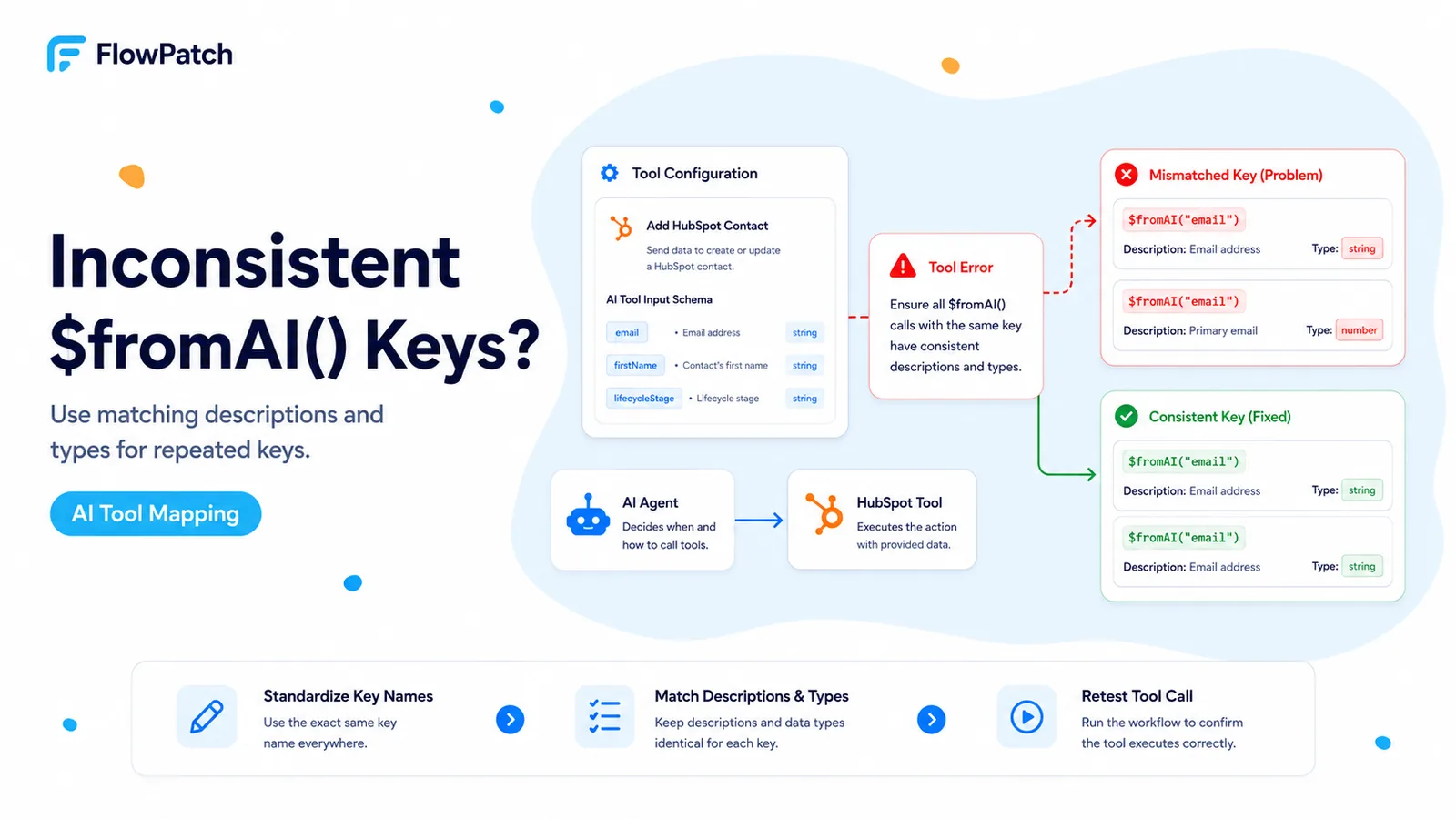
This error happens before HubSpot validates the contact property
A community report showed the HubSpot Tool working with one custom property and failing as soon as more properties were added, with the message 'Ensure all $fromAI() calls with the same key have consistent descriptions and types.' The workaround was to use explicit `$fromAI()` expressions instead of relying entirely on automatically defined AI parameters.
The message is an n8n tool-schema consistency check. It is not a HubSpot API response. Rotating a HubSpot token, adding CRM scopes, or changing the contact property in HubSpot does not address the layer that is complaining.
This distinction is important because HubSpot validation errors usually mention property names, invalid values, scopes, or HTTP status details. The `$fromAI()` wording points directly at how n8n is constructing arguments for the AI Agent’s tool.
If the error literally names `$fromAI()`, debug the AI tool schema first and HubSpot second.
What `$fromAI()` actually defines
n8n’s current documentation says `$fromAI(key, description?, type?, defaultValue?)` lets the model populate a tool parameter. The key is not a reference to an existing JSON field; it is the argument name exposed to the model. Description and type tell the model what value belongs there.
That means two calls using the same key are declaring the same logical tool argument. If one call says that key is a string and another says it is a number, or their descriptions conflict, n8n cannot build one unambiguous schema for that argument.
For independent HubSpot properties, independent keys are usually clearer. A score, status, budget, and reason should not all be exposed as `$fromAI('value', ...)` just because they are all 'values.'
Good:
{{ $fromAI('lead_score', 'Lead score from 0 to 100', 'number') }}
{{ $fromAI('lead_status', 'One of HOT, WARM, COLD', 'string') }}

Risky:
{{ $fromAI('value', 'Lead score', 'number') }}
{{ $fromAI('value', 'Lead status', 'string') }}
Step 1: inspect the expressions n8n generated for each AI-controlled property
When you choose 'Defined automatically by the model,' n8n generates a `$fromAI()` expression behind the UI. Current n8n docs say you can click the X to revert to a user-defined field while keeping the generated expression available for editing.
Do this for each HubSpot property involved in the error. Compare the first argument (key), second argument (description), and third argument (type). Do not judge only by the visible property label.
If two unrelated properties share a generated key, rename the keys to stable snake_case or kebab-case names. n8n allows letters, numbers, underscores, and hyphens within the documented key rules.
- Lead Score → `lead_score` → number.
- Lead Category → `lead_category` → string.
- Budget → `budget_amount` → number or string depending on your HubSpot property.
- Lead Reason → `lead_reason` → string.
If you intentionally reuse one key, make every declaration identical
There are cases where the same model argument feeds multiple fields. For example, a normalized email might populate both a contact lookup and a downstream audit field. Reusing one key can be reasonable if it truly represents one value.
In that case, keep the description and type identical everywhere. Do not use `$fromAI('email', 'Contact email', 'string')` in one place and `$fromAI('email', 'Work email address', 'string')` in another if n8n is enforcing consistency on that key.
Prefer a single upstream Set/Edit Fields node when practical. Let the AI produce one structured set of values, validate them once, then map normal expressions into HubSpot. This reduces repeated AI schema declarations inside the tool.
After the n8n schema is valid, match the HubSpot property type
Fixing `$fromAI()` only gets the tool call to HubSpot. The property still needs a value HubSpot accepts. Numeric HubSpot properties should receive numbers or properly normalized numeric strings according to the API contract. Enumeration fields should use internal option values, not whatever natural-language label the model invents.
For a HOT/WARM/COLD classification, include the allowed values in the `$fromAI()` description or, better, validate the model output before the HubSpot Tool. A model that outputs `Hot Lead` while HubSpot expects internal option `HOT` can pass n8n’s schema and still fail the API write.
Current n8n community discussion in July 2026 also highlighted that automatically defined tool parameters do not always expose option lists to the model as enums. Explicit descriptions and validation remain valuable even when the UI can auto-generate the parameter.
For many HubSpot properties, prefer one structured AI output over many independent tool guesses
When an agent is expected to classify six contact properties, asking the tool to infer every field independently can make debugging opaque. An alternative is to make the model return a structured object first, validate it, then pass deterministic values to HubSpot.
Example output: `lead_score`, `lead_category`, `budget`, `requested_service`, `lead_reason`. A Structured Output Parser or equivalent schema step can enforce presence and types before CRM mutation.
This also improves auditability. You can log the model decision object before writing to HubSpot and compare exactly which value failed if the CRM rejects one property.
AI classification output
{
  "lead_score": 87,
  "lead_category": "HOT",
  "requested_service": "automation",
  "budget": 5000,
  "lead_reason": "Urgent integration project"
}
  ↓
Validate / normalize
  ↓
HubSpot update with normal mapped expressions
Avoid fixes that create a second problem
Do not rename HubSpot properties simply to make `$fromAI()` keys unique. The AI argument key and the HubSpot internal property name do not have to be the same, although matching them can be convenient.
Do not change every AI-controlled field to type string just to suppress a type conflict. That moves the failure downstream and makes numeric comparisons unreliable.
Do not add broad HubSpot scopes. This error can happen before any API request is sent, so permission changes only add risk without evidence.
Verification sequence for a multi-property HubSpot AI Tool
Start with two properties, not the full production set. Give each a unique explicit `$fromAI()` key and correct type, then run a conversation with values that are obvious. Inspect the tool call arguments before checking HubSpot.
Add properties one at a time. If the consistency error returns after adding a field, you know exactly which generated key/type caused it. Once the tool executes, read the contact back from HubSpot and verify stored values rather than trusting the green n8n node alone.
Finally test missing information. Decide whether the agent should ask the user, use a default, omit the property, or fail safely. A CRM tool that invents missing business data is worse than one that refuses to write.
How this was verified
The exact HubSpot Tool error and explicit-$fromAI workaround come from n8n Community. Current n8n documentation defines the `$fromAI()` key, description, type, and default-value behavior. A July 2026 n8n Community discussion provides additional context about auto-generated descriptions and option values in AI tool schemas.
Frequently asked questions
Where does the "$fromAI() calls with the same key" error come from?
It is generated by n8n’s AI tool parameter schema, not by HubSpot. n8n requires every use of a shared $fromAI key to declare the same description and type.
How do I resolve the collision?
Give each independent HubSpot property its own $fromAI key, or make every repeated use of a shared key identical in description and type. When auto-generated tool fields collide, switch the affected parameters back to editable expressions and define $fromAI() explicitly.
Should I also match the HubSpot property type?
Yes. Align the declared $fromAI type with the HubSpot property’s actual type (string, number, enumeration, datetime) so the model output does not fail HubSpot validation after the schema error is cleared.