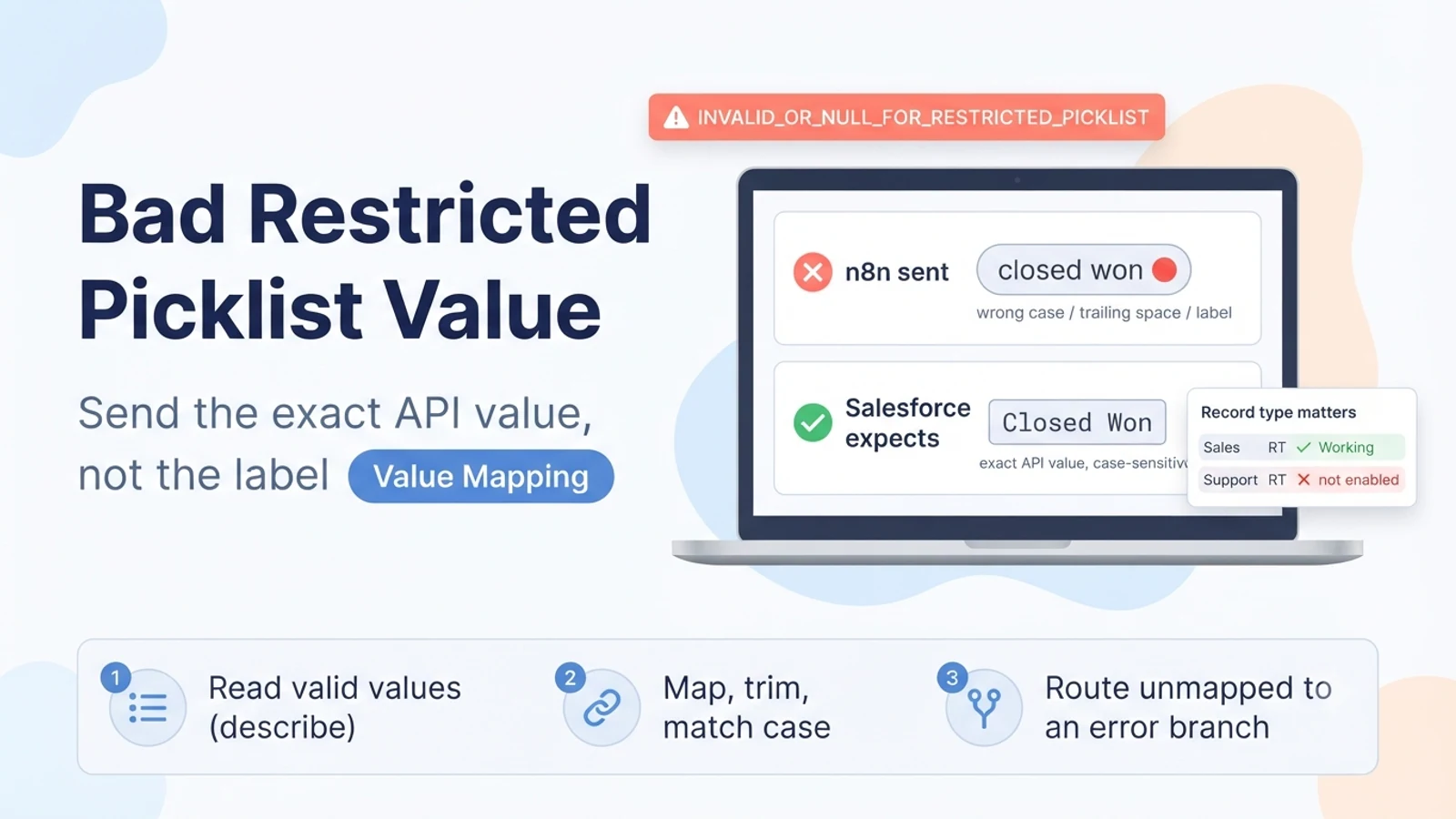
What 'restricted' means here
A Salesforce picklist can be restricted or unrestricted. An unrestricted picklist quietly accepts a value that is not in its list (it just stores it). A restricted picklist enforces its value set: an API write with a value outside that set fails with INVALID_OR_NULL_FOR_RESTRICTED_PICKLIST. Multi-select restricted picklists behave the same way for each value in the selection.
Record types add a second layer. The same field can expose different subsets of the global value set to different record types. A value can be perfectly valid globally and still be rejected because it is not among the values enabled for the record type of the record you are creating or updating.
Salesforce matches on the value's API name, and it is case-sensitive and space-sensitive. 'Closed Won', 'closed won', and 'Closed Won ' (trailing space) are three different strings, and only one is the real value.
Confirm the field's real values
Get the field's value set from Salesforce rather than guessing. A describe call on the object (or the Setup screen for the field) lists each picklist entry with its API value, its label, whether it is active, and — per record type — whether it is available. Use the API value, not the label. Labels are frequently changed for the UI while the underlying value stays the same.
If the object uses record types, get the record-type-specific picklist values too, because that subset is what actually applies to your write. The value your data has might be active globally but not assigned to the record type you are targeting.
Write down the mapping from every value your source system can produce to the exact Salesforce API value. Include an explicit 'no match' outcome so unmapped values are caught in n8n instead of failing at Salesforce.
- Use the field's API value, not its display label.
- Check the per-record-type available values, not just the global set.
- Confirm the value is active (inactive values also reject).
What not to do
Do not un-restrict the picklist to make the error go away. That lets bad values flow into Salesforce permanently and breaks reports, validation, and downstream automation that assume a clean value set.
Do not blank the field to dodge the error unless blank is genuinely correct. Sending null to a required restricted picklist just changes the error to a missing-required-field failure.
Do not add every possible source value to the Salesforce value set to force a match. That pollutes the picklist with near-duplicates ('USA', 'U.S.A.', 'United States') and defeats the point of restricting it. Map instead.
The fix: map, trim, match case, respect the record type
In n8n, put a mapping step (a Set node with an expression, or a small Code node with a lookup object) between your source data and the Salesforce node. It converts each incoming value to the exact Salesforce API value, trims whitespace, and normalises case to match. Any value that does not resolve is routed to an error branch, not sent onward.
If your write specifies a record type (or the object has a default record type for the integration user), make sure every mapped value is one that is enabled for that record type. If you need to support several record types, the mapping has to be record-type-aware.
When the business really does need a value Salesforce does not have yet, the correct fix is to add it to the field's value set in Salesforce (and enable it for the relevant record types) before the workflow sends it. That is a Salesforce config change, not something to work around in n8n.
// n8n Code node: normalise to the exact Salesforce API value
const valueMap = {
  'won': 'Closed Won',
  'closed-won': 'Closed Won',
  'lost': 'Closed Lost',
  'in progress': 'Working',
};
const raw = (($json.stage || '') + '').trim().toLowerCase();
const sfValue = valueMap[raw];

if (!sfValue) {
  // route to an error branch — do NOT send an unmapped value to Salesforce
  return [{ json: { error: 'unmapped picklist value', raw: $json.stage } }];
}
return [{ json: { StageName: sfValue } }];   // exact API value, correct case
Verification
Take the exact value from your last failing payload and compare it character by character with the field's API value from a describe call: case, spaces, punctuation. The difference is almost always one of those.
After adding the mapping, run a record for each distinct source value you expect and confirm each one writes successfully. Then send a deliberately unmapped value and confirm it lands in your n8n error branch and never reaches Salesforce.
If record types are involved, run one record per record type and confirm the mapped value is accepted for each. A value that passes for one record type and fails for another means the mapping is not record-type-aware yet.
- Failing value differs from the API value only by case, spaces, or punctuation.
- Every expected source value now writes successfully.
- An unmapped value is caught in n8n, not by Salesforce.
- Mapped values are accepted for every record type you target.
Sources checked for this guide
Salesforce Help documents the 'bad value for restricted picklist field' error and its causes: value not in the set, case mismatch, and record-type restrictions. Third-party guides on INVALID_OR_NULL_FOR_RESTRICTED_PICKLIST document the same causes for API and middleware integrations, including sending the label instead of the API name. n8n's Salesforce node documentation covers field mapping.